
How to Fix Screen Tearing, Stuttering, and Input Lag on a Gaming Monitor in 2026
You finally get your gaming setup running, launch your favorite game, and something feels wrong. The screen tears when you turn the camera, gameplay freezes for a split second during a firefight, or your character responds a little too late when you move the mouse.
It is frustrating, especially when you have invested money in a gaming monitor that promises a high refresh rate and smooth performance.
The good news is that you do not always need a new monitor or a more powerful gaming PC to solve these problems. In many cases, the cause is a mismatch between your frame rate and refresh rate, incorrect synchronization settings, an overloaded graphics card, or a connection that is limiting your display.
In this guide, we will explain how to fix screen tearing, stuttering, and input lag on a gaming monitor in 2026. You will learn what causes each issue, which settings to change, when to use G-SYNC, FreeSync, or V-Sync, and how to get smoother gameplay without adding unnecessary input delay.
Whether you play competitive shooters, racing games, sports games, or demanding single-player titles, these troubleshooting steps will help you identify the problem and work toward a smoother gaming experience.
What Causes Screen Tearing, Stuttering, and Input Lag?
Although these three problems can look similar at first, they are not the same. Understanding the difference makes it much easier to find the right fix.
What is screen tearing?
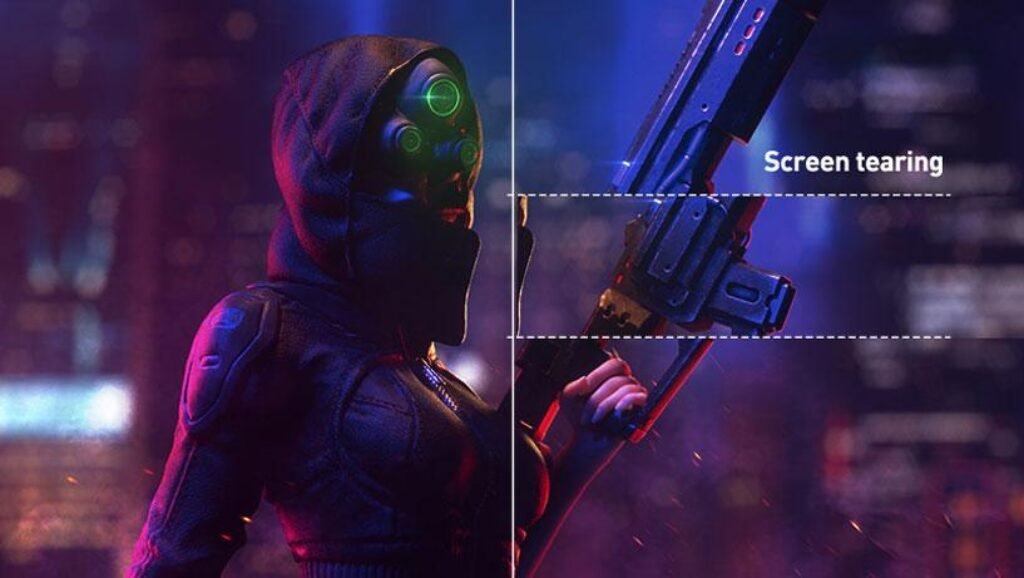
Screen tearing occurs when the monitor displays parts of multiple frames at the same time. You may notice a horizontal line across the screen where one portion of the image does not line up with another.
It is especially noticeable when turning the camera quickly in a first-person shooter or moving across a football pitch in a sports game.
Tearing commonly happens when the graphics card sends frames without synchronizing them to the monitor’s refresh cycle. For example, your GPU might render 180 frames per second while your monitor refreshes at 144Hz.
The difference between those numbers does not automatically mean every frame will tear, but unsynchronized frame delivery can cause visible tearing.
What is gaming stuttering?
Stuttering occurs when gameplay does not appear consistently smooth. The game may run well for several seconds before briefly freezing, skipping, or slowing down.
Unlike screen tearing, which involves parts of different frames appearing together, stuttering is often related to inconsistent frame delivery.
Common causes include:
- Sudden drops in frame rate.
- Shader compilation and asset loading.
- CPU or GPU bottlenecks.
- Insufficient system memory or video memory.
- Background applications consuming resources.
- Poorly configured graphics settings.
- Problems with game engines, drivers, or specific game updates.
A game averaging 120 FPS can still feel choppy if its frame times are inconsistent. Average FPS alone does not tell the whole story.
What is input lag?
Input lag is the delay between an action and its appearance on the screen. You move your mouse, press a button, or move a controller stick, but the action takes longer than expected to appear.
Input delay can come from several places, including the input device, game engine, CPU, GPU rendering queue, display processing, and monitor response.
A slow pixel response time is not the same as input lag. Pixel response describes how quickly a pixel changes from one state to another, while input lag describes the delay before the result of your action becomes visible.
A monitor can have excellent pixel response times and still feel sluggish if other parts of the system introduce delay.
Screen Tearing vs. Stuttering vs. Input Lag: Quick Comparison
| Problem | What you notice | Common causes | Best starting fix |
|---|---|---|---|
| Screen tearing | Horizontal breaks in moving images | Unsynchronized frame delivery | Enable compatible G-SYNC or FreeSync, or test V-Sync |
| Stuttering | Brief freezes, skips, or uneven motion | Frame-time spikes, CPU/GPU limits, shader compilation | Monitor frame times and reduce the cause of spikes |
| Input lag | Delayed mouse, keyboard, or controller response | Rendering queues, V-Sync configuration, low FPS, display processing | Enable a supported low-latency mode and optimize settings |
| Ghosting | Trails behind moving objects | Slow pixel transitions or poor overdrive tuning | Adjust response-time settings |
| Low FPS | Gameplay consistently looks less fluid | Hardware limits or demanding settings | Lower graphics settings or use an appropriate upscaling option |
If you see a horizontal split across the image, start by investigating tearing. If the game briefly freezes, look at frame times and system performance. If the game runs smoothly but controls feel delayed, investigate input latency.
1. Enable G-SYNC or FreeSync to Reduce Screen Tearing
One of the most effective ways to reduce screen tearing is to use variable refresh rate technology.
NVIDIA G-SYNC and AMD FreeSync allow a compatible monitor to adjust its refresh timing to match the GPU’s frame delivery within the supported operating range. This can reduce tearing and make changes in frame rate feel smoother. The exact experience depends on the monitor, graphics card, connection, and settings. See NVIDIA’s G-SYNC documentation for supported display requirements.
How to enable G-SYNC on an NVIDIA graphics card
- Connect your monitor using a supported DisplayPort or HDMI connection.
- Open the NVIDIA Control Panel.
- Select Set up G-SYNC, if the option is available.
- Enable G-SYNC or G-SYNC Compatible mode for your supported display.
- Choose whether it should work in full-screen mode only or in full-screen and windowed modes, depending on your setup.
- Apply the changes.
- Open your game and test whether tearing and uneven motion have improved.
Some displays require Adaptive-Sync or a similar setting to be enabled in the monitor’s on-screen display before G-SYNC Compatible mode becomes available.
If you cannot find the G-SYNC option, check your monitor’s specifications, graphics driver, connection type, and compatibility requirements.
How to enable FreeSync on an AMD graphics card
- Open AMD Software: Adrenalin Edition.
- Navigate to the display settings.
- Look for AMD FreeSync and enable it if your display supports it.
- Check the monitor’s on-screen menu to ensure Adaptive-Sync or FreeSync is enabled.
- Launch your game and test the result.
Menu names may differ between driver versions, so use the current software documentation if your interface looks different.
Advantages and disadvantages of G-SYNC and FreeSync
| Advantages | Disadvantages |
|---|---|
| Reduce tearing without requiring traditional fixed-refresh synchronization | Require compatible hardware and supported settings |
| Help make fluctuating frame rates appear smoother | Work best within the monitor’s supported VRR range |
| Useful for both competitive and single-player games | Incorrect configuration can still cause problems |
| Can reduce the need to choose between tearing and traditional V-Sync latency | Do not fix severe FPS drops, shader stutter, or every source of input lag |
Pro tip: Variable refresh rate is often a good first step when your monitor supports it. If tearing remains, check whether VRR is actually active, whether your frame rate is outside its operating range, and whether additional synchronization settings are needed.
2. Should You Turn V-Sync On or Off?
V-Sync, short for Vertical Synchronization, controls how rendered frames are presented relative to the monitor’s refresh cycle.
When V-Sync is disabled, your GPU can present frames without waiting for the normal synchronization point. This can reduce some forms of latency, but it can also produce screen tearing.
When V-Sync is enabled, tearing is generally eliminated by synchronizing frame presentation, but traditional V-Sync can add latency. Its effect on smoothness depends on whether your system can sustain the monitor’s refresh rate and how the game implements synchronization.
There is no single V-Sync setting that is perfect for every gamer.
V-Sync advantages and disadvantages
| Setting | Advantages | Disadvantages | Best suited for |
|---|---|---|---|
| V-Sync On | Prevents tearing in typical supported configurations | Can add input latency; inconsistent performance may feel less smooth | Players who prioritize tear-free visuals |
| V-Sync Off | Often minimizes synchronization-related latency | Can cause visible tearing | Competitive players who prioritize responsiveness |
| Adaptive V-Sync | Can adjust synchronization behavior as frame rate changes | Behavior and availability depend on GPU software; may not eliminate every issue | Players who want a compromise |
| G-SYNC or FreeSync | Adapts refresh timing to changing frame rates within the VRR range | Requires compatibility and correct configuration | Most users with a supported VRR setup |
Which V-Sync setting should you use in 2026?
For a competitive game where every millisecond matters, V-Sync Off can be a reasonable starting point if you are comfortable with tearing.
For a game where smooth visuals matter more, V-Sync On may be preferable.
If you have a compatible G-SYNC or FreeSync monitor, start by enabling variable refresh rate and testing the game’s behavior. On some NVIDIA G-SYNC setups, using NVIDIA Control Panel V-Sync alongside G-SYNC and an appropriate frame-rate cap can provide tear-free gameplay while avoiding the additional latency associated with hitting the refresh-rate ceiling. NVIDIA explains this approach in its system latency optimization guide.
Do not blindly copy another player’s settings. Test your own monitor, game, and graphics card combination.
3. Set the Correct Monitor Refresh Rate in Windows
You might own a 144Hz, 165Hz, 240Hz, or even faster gaming monitor but still be running it at 60Hz.
This can happen after installing a new graphics driver, connecting a new display, changing resolutions, or using a connection that does not support the intended mode.
A higher refresh rate allows the display to update more frequently, provided the monitor and connection support it. It does not guarantee a particular FPS or eliminate every form of stuttering.
How to change your refresh rate in Windows 11
- Open Settings.
- Select System, then Display.
- Open Advanced display.
- Select your gaming monitor if you use multiple displays.
- Find the refresh-rate setting.
- Choose the highest refresh rate you intend to use that is actually supported by your monitor and connection.
Microsoft provides the official instructions in its guide to changing your monitor’s refresh rate.
You should also check your game’s display settings. Some games use a resolution or display mode that differs from your Windows desktop settings.
Refresh rate advantages and disadvantages
| Refresh rate | Advantages | Disadvantages |
|---|---|---|
| 60Hz | Affordable hardware requirements; suitable for casual gaming | Less fluid motion than higher refresh rates |
| 120Hz–144Hz | Noticeably smoother motion; good balance for many gamers | Requires the game to deliver enough frames to take full advantage |
| 165Hz–180Hz | Strong balance of smoothness and responsiveness | Benefits depend on game, GPU, and player sensitivity |
| 240Hz | Attractive for competitive gaming with high frame rates | Higher hardware demands and often higher monitor prices |
| 360Hz and above | Can reduce display refresh intervals further for competitive play | Diminishing returns for many users; demanding frame-rate requirements |
A higher refresh rate can be valuable, but do not buy a monitor based on the number alone. Panel response, input latency, adaptive-sync performance, and your ability to maintain high frame rates all matter.
4. Limit Your FPS to Reduce Tearing and Improve Frame Pacing
Sometimes your GPU produces significantly more frames than your monitor can display. Other times, your frame rate fluctuates so much that gameplay feels inconsistent.
An FPS cap can help stabilize performance and reduce unnecessary GPU load. With variable refresh rate, it can also help keep your frame rate within the monitor’s supported range.
For example, if you use a 144Hz monitor, you might test a cap around 141 FPS. For a 165Hz monitor, you could try 162 FPS. For a 240Hz monitor, 237 FPS is a reasonable starting experiment.
These are commonly used starting points, not universal rules. The best cap depends on your VRR implementation, game, GPU load, and synchronization settings.
How to set an FPS cap
You can usually limit frame rate through:
- The game’s built-in FPS limiter.
- NVIDIA Control Panel’s Max Frame Rate setting.
- AMD Software’s supported frame-rate limiting features.
- A reputable frame-rate limiter compatible with your setup.
Start with the in-game limiter if one is available and performs well.
Advantages and disadvantages of FPS limiting
| Advantages | Disadvantages |
|---|---|
| Can reduce GPU utilization and heat | May slightly reduce peak FPS |
| Can improve consistency when the GPU is overloaded | An unsuitable cap may make gameplay feel less responsive |
| Helps keep frame rates within a VRR range | Does not solve every CPU bottleneck or frame-time spike |
| Can reduce power consumption and fan noise | Requires testing to find an appropriate limit |
For competitive players who want the lowest possible latency, an uncapped frame rate can sometimes be preferable, even with tearing. For players who prioritize consistent, tear-free motion, a carefully chosen cap can be more useful.
5. Fix Gaming Stuttering by Checking Frame Times and FPS Drops
If your game freezes briefly, skips frames, or feels uneven despite a high average FPS, start looking at frame times.
Frame time is the amount of time needed to produce a frame. At 60 FPS, each frame takes about 16.7 milliseconds. At 120 FPS, it takes about 8.3 milliseconds. At 240 FPS, it takes about 4.2 milliseconds.
When frame times suddenly rise, you can feel a hitch even if the average FPS looks impressive.
Step 1: Monitor your GPU and CPU usage
Use your game’s performance overlay or a reputable monitoring tool to examine:
- FPS and frame-time graphs.
- GPU utilization.
- CPU utilization and individual CPU-core load.
- System RAM and GPU memory usage.
- CPU and GPU temperatures.
- Clock speeds and power limits.
If the GPU is consistently near full utilization, you may need to lower demanding graphics settings or use a suitable upscaling option.
If one CPU core is heavily loaded while GPU utilization drops, the game may be CPU-limited. Lowering GPU-heavy settings may not solve that particular bottleneck.
Step 2: Reduce demanding graphics settings
Try lowering these settings individually rather than reducing everything at once:
- Ray tracing.
- Shadow quality.
- Volumetric effects.
- View distance or level-of-detail settings.
- Texture quality if video memory is insufficient.
- Crowd density or simulation settings in CPU-heavy games.
Restart the game after each major change if necessary, and test the same area or scene.
Step 3: Check background applications
Close unnecessary applications that consume CPU, memory, storage, or GPU resources. Browser tabs, video recording, streaming software, downloads, and overlays can all affect performance under certain conditions.
If you stream or record gameplay, do not assume you must disable everything. Instead, test whether the performance issue disappears when a particular application is closed.
Step 4: Consider shader compilation
Some PC games compile shaders during gameplay or after updates. This can cause temporary stutters, especially the first time you encounter a new effect or area.
If the problem occurs only during the first encounter with an effect and improves afterward, shader compilation may be involved. Allow the game’s shader preparation process to finish when available, and avoid repeatedly clearing shader caches without a specific reason.
Step 5: Check for thermal or power limitations
If performance drops after several minutes of gaming, check CPU and GPU temperatures, clock speeds, and power behavior.
A system that becomes too hot may reduce its operating speed to protect itself. Make sure the PC has adequate airflow and that fans and cooling components are functioning properly.
Advantages and disadvantages of common stuttering fixes
| Fix | Advantages | Disadvantages |
|---|---|---|
| Lower graphics settings | Quick way to reduce GPU load | Visual quality may decrease |
| FPS cap | Can improve consistency and reduce unnecessary GPU load | May reduce maximum frame rate |
| Close background applications | Frees system resources | You may need to give up recording or other applications |
| Update graphics drivers | Can fix game-specific bugs and compatibility problems | Some updates can introduce new issues |
| Allow shader compilation to finish | May resolve first-run stutters | Does not fix every frame-time problem |
| Improve cooling | Can help restore performance when thermal throttling is occurring | Requires diagnosis; may involve extra cost |
| Upgrade RAM or GPU | Can resolve genuine hardware limitations | Costs money and may not address the actual cause |
The most effective approach is to identify what is causing the frame-time spikes before spending money on new hardware.
6. Reduce Input Lag Without Making Gameplay Look Worse
Input lag can be particularly frustrating in competitive games. Your aim feels slightly behind your mouse, your character reacts late, or your controller inputs do not seem to register as quickly as expected.
Start with the settings that affect the entire system rather than changing every option at once.
Enable a low-latency setting where supported
NVIDIA users can test Low Latency Mode in NVIDIA Control Panel for supported games. NVIDIA also offers NVIDIA Reflex in supported titles, which is designed to reduce system latency.
If a game has NVIDIA Reflex, try its supported On setting first. Some games also provide an On + Boost option. The results depend on the game and hardware, so compare the actual experience rather than assuming every option is faster in every situation.
AMD users should check the game’s supported latency-reduction features and the relevant AMD driver settings. Availability varies by GPU, game, and software version.
Avoid unnecessary display processing
Check your monitor’s on-screen menu for a Game Mode or low-latency setting. Some monitors include image-processing features that can add delay, depending on the mode.
You can test disabling features you do not need, such as certain noise-reduction or post-processing options. However, avoid assuming that every picture enhancement adds significant latency.
Check your mouse and controller
A high polling rate can help some setups, but it is not a replacement for a well-performing game and display pipeline.
Try connecting the mouse directly to the PC instead of through an unreliable hub, check for wireless interference, and confirm that the device’s software and firmware are up to date.
For controllers, test a wired connection if wireless responsiveness seems inconsistent. Also check the game’s input settings and whether the issue occurs with more than one device.
Input-lag fixes: advantages and disadvantages
| Fix | Advantages | Disadvantages |
|---|---|---|
| NVIDIA Reflex in supported games | Can reduce system latency in compatible titles | Not available in every game |
| NVIDIA Low Latency Mode | Offers a driver-level option for supported scenarios | May provide little benefit when another component is the bottleneck |
| Monitor Game Mode | Can reduce processing delay on some displays | Picture quality may change |
| Stable high frame rate | Often reduces rendering delay and improves responsiveness | Requires sufficient hardware performance |
| Wired mouse or controller test | Helps identify wireless or connection-related problems | May be less convenient |
| Turn off V-Sync for testing | Can reduce synchronization-related delay | May introduce tearing |
One important point: do not assume the highest possible FPS always produces the best overall experience. Higher frame rates can reduce rendering latency, but an unstable game may still feel worse than one with slightly lower, consistent frame times.
7. Check Your HDMI or DisplayPort Cable and Connection
A monitor may support a high refresh rate on paper but fail to offer the desired resolution and refresh-rate combination because of the connection, cable, port, or device configuration.
This is particularly relevant when using 1440p or 4K monitors at high refresh rates.
What to check
- Confirm the monitor supports your target resolution and refresh rate over the connection you are using.
- Check the monitor’s manual for port-specific limitations.
- If possible, connect the monitor directly to the graphics card rather than a motherboard video output or an unsuitable adapter.
- Test a known-good cable that supports the required bandwidth.
- Confirm that Windows and the game’s display settings use the intended mode.
- If you use an adapter, dock, KVM switch, or receiver, temporarily bypass it to see whether the issue changes.
A cable problem is not the most likely explanation for every stutter or instance of input lag. However, an unsuitable cable or connection can prevent the display from running in its intended mode or cause signal dropouts and other display issues.
8. Fix Gaming Monitor Problems on PS5 and Xbox
PC users have more graphics-driver settings to adjust, but console players can also experience tearing, inconsistent frame pacing, and delayed controls.
PlayStation 5
Check your PS5’s screen and video settings and enable supported 120Hz output when appropriate. Confirm that the game supports the mode you want and that the monitor’s HDMI port supports the required resolution and refresh rate.
If your monitor supports VRR, check compatibility and enable the feature where supported.
If the game stutters, test its available graphics or performance modes. A performance mode may target a higher frame rate, while a quality mode may prioritize visual detail.
Xbox Series X and Series S
Check the console’s TV and display options for the supported resolution, refresh rate, and variable refresh rate features.
Make sure your monitor supports the combination you select. A monitor that advertises 144Hz or 165Hz for PC gaming does not necessarily support every console refresh-rate and resolution combination over HDMI.
Console troubleshooting comparison
| Fix | Advantages | Disadvantages |
|---|---|---|
| Enable supported 120Hz output | Can make compatible games feel smoother | Requires a supported game, display, and connection |
| Enable VRR where supported | Can reduce tearing and improve smoothness | Compatibility and operating ranges vary |
| Use performance mode | Often prioritizes frame rate | May reduce image quality |
| Check HDMI settings and cable | Can restore supported display modes | Won’t fix performance problems inside the game |
| Restart the game or console | Can clear temporary issues | Does not resolve persistent underlying causes |
If only one game has the problem, check for a game update and known issues before assuming your monitor is faulty.
9. When Should You Upgrade Your Gaming Monitor?
Sometimes your current monitor is the limiting factor. However, upgrading is worth considering only after checking your existing setup.
A monitor upgrade may make sense if you are still using 60Hz and want smoother competitive gaming, your display lacks VRR, or its motion performance is poor despite sensible settings.
It is also worth considering if you want a higher resolution, better HDR, or a larger screen.
| Monitor feature | Advantages | Disadvantages |
|---|---|---|
| High refresh rate | Can improve motion clarity and responsiveness | Requires adequate frame rates to realize the full benefit |
| Adaptive-Sync / VRR | Helps reduce tearing and frame-rate-related judder within its supported range | Requires compatibility and proper configuration |
| Fast pixel response | Helps reduce ghosting and trailing | Advertised response times may not reflect real performance |
| Higher resolution | Produces sharper images and more detail | Requires more GPU power in many games |
| OLED panel | Excellent contrast and very fast pixel response | Potential burn-in and model-dependent brightness |
| Mini-LED backlight | Can provide bright HDR highlights and improved LCD contrast | May produce blooming around bright objects |
| Fast IPS panel | Often combines good value with high refresh rates | Usually has weaker native contrast than OLED |
Before purchasing, compare independent measurements of input lag, pixel response, overshoot, brightness, and VRR behavior. A high refresh-rate number by itself does not guarantee a good gaming experience.
10. Best Gaming Monitor Settings to Try in 2026
If you want a simple starting point, use the following configurations as a baseline and adjust them to your hardware and preferences.
| Setting | Smooth, tear-free gaming | Competitive, low-latency gaming |
|---|---|---|
| Windows refresh rate | Set to the supported maximum | Set to the supported maximum |
| G-SYNC / FreeSync | Enable if supported | Test if supported; choose based on latency and tearing preference |
| V-Sync | Test On alongside VRR where appropriate | Often Off if minimum latency is the priority |
| FPS cap | Test a few FPS below the VRR ceiling | Test uncapped or a stable high cap |
| NVIDIA Reflex | Enable in supported games | Enable in supported games |
| Graphics quality | Balance image quality and frame-time stability | Reduce demanding settings if they limit responsiveness |
| Monitor picture mode | Game mode or another tested low-latency mode | Tested low-latency mode |
| Frame-time monitoring | Useful when diagnosing stutter | Useful when diagnosing stutter |
These are starting points, not guaranteed optimal settings. Different monitors, games, and graphics cards can behave differently, so change one setting at a time and compare the result.
Final Thoughts: How to Get Smoother Gaming in 2026
Screen tearing, stuttering, and input lag can all make a good gaming setup feel disappointing, but they usually have different causes. The quickest route to a fix is to identify which problem you are experiencing instead of changing every graphics setting at once.
If you are dealing with screen tearing, start with G-SYNC or FreeSync if your monitor supports it, then test V-Sync and an appropriate frame-rate cap.
If your game stutters, look at frame times, CPU and GPU usage, temperatures, memory usage, background applications, and shader compilation. A high average FPS does not guarantee consistent frame delivery.
If your controls feel delayed, test low-latency features, monitor Game Mode, synchronization settings, and your mouse or controller connection.
Finally, make sure your monitor is running at its intended refresh rate and that your cable and connection support the resolution and refresh-rate combination you want.
You do not need to spend money on a new gaming monitor until you have checked these basics. A few carefully chosen changes can sometimes make a bigger difference than an expensive hardware upgrade.
If you found this guide helpful, explore more gaming monitor reviews, display technology comparisons, and PC gaming guides on ProGamersTech.com.
Frequently Asked Questions
How do I fix screen tearing on a gaming monitor?
Start by enabling G-SYNC or FreeSync if your monitor supports it. If tearing remains, verify that variable refresh rate is active, test V-Sync, and consider an appropriate FPS cap. Also check that your display is running at its intended refresh rate.
Why is my 144Hz monitor still stuttering?
A 144Hz monitor does not guarantee that a game will deliver 144 consistent frames per second. CPU or GPU bottlenecks, shader compilation, background applications, thermal throttling, and inconsistent frame times can all cause stuttering.
Does V-Sync increase input lag?
Traditional V-Sync can add input latency because frame presentation may need to wait for the monitor’s refresh cycle. The amount depends on the game, frame rate, buffering, and synchronization implementation. Test it against your priorities rather than assuming it always creates the same delay.
Is G-SYNC better than FreeSync?
Both technologies can reduce tearing and improve smoothness with compatible hardware. The experience depends on the particular monitor, graphics card, VRR range, and implementation. A well-reviewed compatible display is generally more important than choosing a brand name alone.
Should I cap FPS below my monitor’s refresh rate?
If you use variable refresh rate and want to avoid hitting the upper refresh-rate limit, a cap a few frames below that limit is a common starting point. If you prioritize the lowest possible latency and accept tearing, an uncapped frame rate may be preferable in some games.
Can a bad HDMI or DisplayPort cable cause stuttering?
A cable that cannot reliably support the required signal may cause display dropouts, flickering, or prevent the monitor from using the intended resolution and refresh rate. However, ordinary gameplay stutter is more commonly associated with frame delivery or system performance. Test a suitable, known-good cable if you suspect a connection problem.
Does a higher refresh rate reduce input lag?
A higher refresh rate can reduce the time between display refreshes, and higher frame rates can reduce rendering delay. However, total input latency also depends on the game, CPU, GPU, display processing, and input device.
Why does my monitor feel laggy even at 240Hz?
A 240Hz monitor can still feel laggy if the game has high system latency, unstable frame times, V-Sync-related delay, excessive display processing, or a slow input connection. Check the entire system rather than focusing only on refresh rate.
Is screen tearing a sign that my monitor is broken?
Usually not. Screen tearing is commonly caused by unsynchronized frame presentation rather than a hardware defect. If you also experience flickering, lines that remain visible outside games, signal loss, or other persistent display abnormalities, test another cable and device and consult the monitor manufacturer’s support if needed.
These authoritative references support the technical advice in the guide:
NVIDIA: G-SYNC settings and requirements — variable refresh rate and compatible displays.
NVIDIA: System latency optimization guide — synchronization and latency considerations.
Microsoft Support: Change your monitor’s refresh rate — Windows display settings.
Microsoft Support: Optimizations for windowed games in Windows 11 — supported windowed and borderless gaming optimizations.
Blur Busters: Benefits of frame rates above refresh rate — the trade-offs between frame rate, tearing, and latency.
Other Articles:OLED vs. Mini-LED vs. IPS